Install Network24 on a Fire TV Stick, Fire TV Cube, or compatible Fire TV. Rooting is not required.
Before you start
Connect your Fire TV to the internet. Keep your Network24 welcome email or account details nearby. You will need the username and password supplied with your subscription.
Connect your Fire TV to the internet. Keep your Network24 welcome email or account details nearby. You will need the username and password supplied with your subscription.
Important
Do not root your Firestick. Installing a third-party APK is called sideloading. On supported Fire OS devices, it uses the device's install permission, not root access. Menu names may vary by Fire OS version; if your model does not offer this option, contact support instead of attempting a risky workaround.
Do not root your Firestick. Installing a third-party APK is called sideloading. On supported Fire OS devices, it uses the device's install permission, not root access. Menu names may vary by Fire OS version; if your model does not offer this option, contact support instead of attempting a risky workaround.
Step-by-step setup
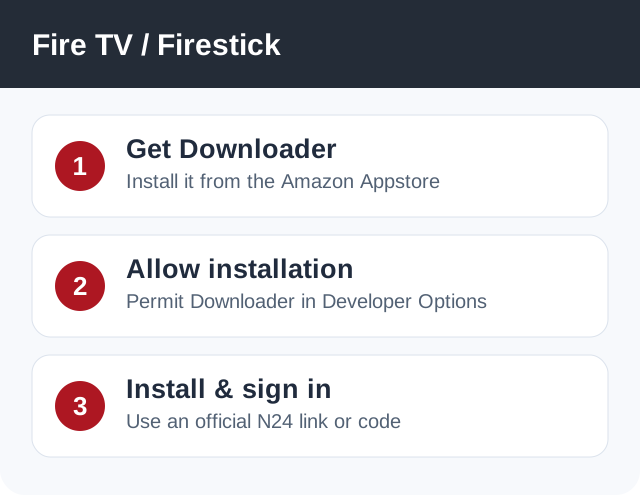
- From the Fire TV home screen, open Find / Search, search for Downloader, and install it from the Amazon Appstore.
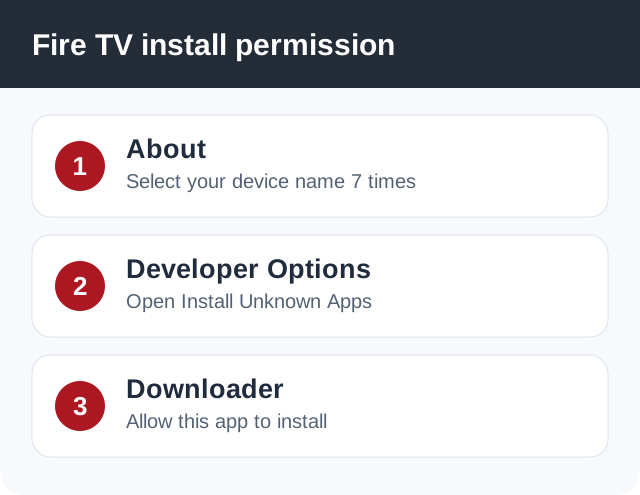
- Open Settings > My Fire TV > Developer Options. If Developer Options is hidden, open About, highlight your device name, press the remote's select button seven times, then go back. On supported Fire OS versions, open Install Unknown Apps and allow Downloader. ADB debugging is not needed.
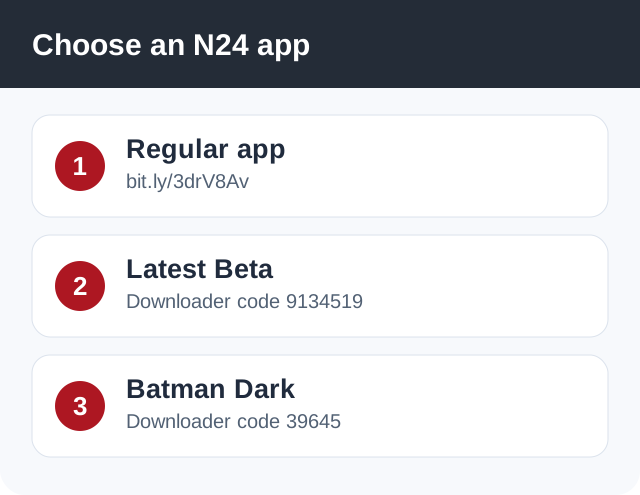
Illustrated steps; your device menus may look slightly different. - Open Downloader. For the regular Network24 app, enter https://bit.ly/3drV8Av. If support has asked you to test the latest beta, enter Downloader code 9134519. For Batman Dark Edition, enter code 39645. Install only the version you intend to use.
Illustrated steps; your device menus may look slightly different. - When the download finishes, choose Install. Return to Your Apps & Channels, or Settings > Applications > Manage Installed Applications, and open Network24.
- Enter the Network24 login information exactly as shown in your welcome email. If the chosen app asks for a server address, use the one supplied with your subscription. Allow the channels and guide to load, then test one live channel.
Player or app options
Regular app: direct APK link. Latest Beta: Downloader link / code 9134519. Batman Dark Edition: direct APK link / code 39645. Beta builds can behave differently from the regular app; use the regular app unless you have a reason to test beta.
If it does not work
- Downloader cannot install: revisit Install Unknown Apps and confirm Downloader is allowed; verify the device has free storage.
- App opens but no channels load: check username/password carefully, including capitalization and spaces; wait for the first guide sync.
- App is missing from Home: check Your Apps & Channels or Manage Installed Applications.
- Only one channel fails: report its exact name rather than reinstalling the whole app.
Quick answers
Do I need to root my Firestick?
No. The supported sideloading flow does not require root access.
Do I need ADB debugging?
No. Downloader only needs permission to install the downloaded app.
Which app version should I choose?
The regular app is the starting point. Try the beta or Dark Edition only if you prefer it or support asks you to test it.
Need help?
Open a support ticket and include your device model, app name, and the exact error. Do not post your password publicly.
Open a support ticket and include your device model, app name, and the exact error. Do not post your password publicly.