Use the built-in IPTV portal/player on a compatible box and add your Network24 account with Xtream Codes credentials.
Before you start
Keep your Network24 welcome email nearby. Menu names differ by device model and player version.
Keep your Network24 welcome email nearby. Menu names differ by device model and player version.
Important
Use your Network24 server URL, username and password. Do not use a MAG/MAC portal method unless support specifically provided a portal for your device.
Use your Network24 server URL, username and password. Do not use a MAG/MAC portal method unless support specifically provided a portal for your device.
Step-by-step setup
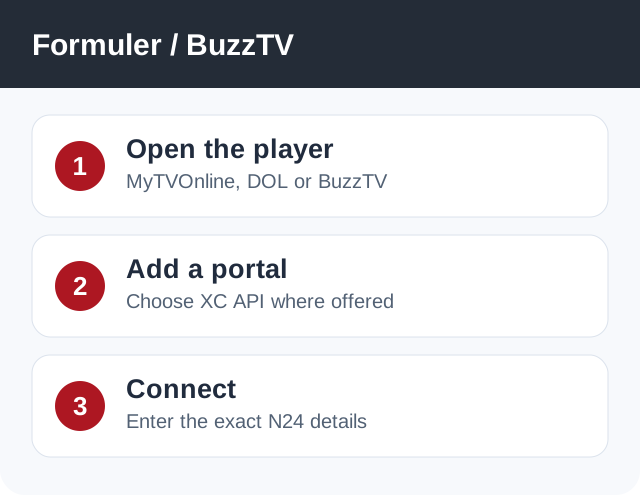
- Formuler: open MyTVOnline 2/3, go to Connections/Portal, and choose Add. Dreamlink: open its DOL player and add a portal. BuzzTV: open Server Settings and choose XC API Login.
- Choose Xtream Codes / XC API login if offered. Enter any display name, then the exact server URL, username and password from Network24.
- Save or Connect. Wait for the playlist to load, then choose Live TV and test a channel.
- If your player only presents MAC/portal mode, contact Network24 support before registering a MAC address or trying a different portal URL.
If it does not work
- If authentication fails, check the complete URL and login fields.
- If the device stays on loading, restart the player once and verify the network connection.
- If it reports a portal/MAC error, tell support your model and the login mode you selected.
Quick answers
Do I need a MAC address?
Not for a normal Xtream Codes login. Some portal modes require a separate setup.
Where is the server URL?
Use the URL in your Network24 welcome email or ask support.
Need help?
Open a support ticket and include your device model, app name, and the exact error. Do not post your password publicly.
Open a support ticket and include your device model, app name, and the exact error. Do not post your password publicly.