Use a compatible IPTV player from your TV app store when your TV does not run Android TV or Google TV.
Before you start
Have your Network24 server address, username, and password from the welcome email. Check whether your TV runs Android TV/Google TV first; if it does, use that guide instead.
Have your Network24 server address, username, and password from the welcome email. Check whether your TV runs Android TV/Google TV first; if it does, use that guide instead.
Important
A Samsung Tizen or LG webOS television cannot install the Network24 Android APK directly. Third-party IPTV players may charge their own app activation fee; that is separate from Network24.
A Samsung Tizen or LG webOS television cannot install the Network24 Android APK directly. Third-party IPTV players may charge their own app activation fee; that is separate from Network24.
Step-by-step setup
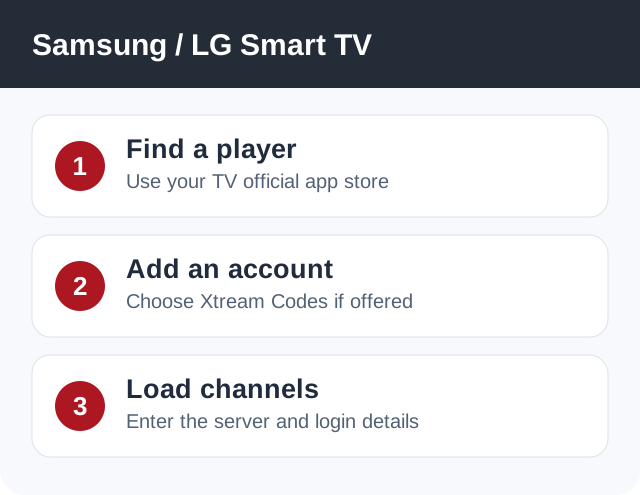
- On the TV, open its official app store and search for an IPTV player that supports Xtream Codes API. Availability differs by model and region.
- Install the player, open it, and choose Add Playlist / Add User / Xtream Codes (wording varies).
- Enter a playlist name such as Network24, the exact server/portal URL from your welcome email, and your Network24 username and password.
- Save and wait for the live TV categories and EPG to load. Test a channel and confirm your TV is using a stable connection.
- If your TV offers no suitable player, attach a Fire TV or Android TV streaming device via HDMI and use that device's guide.
Player or app options
Choose a player available in your own TV store. Before paying a third-party activation fee, confirm that it supports Xtream Codes login and works on your model.
If it does not work
- If login is rejected, check the server address as carefully as the username and password.
- If the app asks for a MAC address on an external website, confirm that website belongs to the player developer before entering any details.
- If the EPG is blank initially, allow time for the first sync and refresh it within the player.
Quick answers
Can I install the Network24 APK on a Samsung or LG TV?
Not directly on Tizen or webOS. Use a store-based IPTV player or a connected Android/Fire TV device.
Does the player fee include Network24?
No. The app and the Network24 subscription are separate.
Need help?
Open a support ticket and include your device model, app name, and the exact error. Do not post your password publicly.
Open a support ticket and include your device model, app name, and the exact error. Do not post your password publicly.