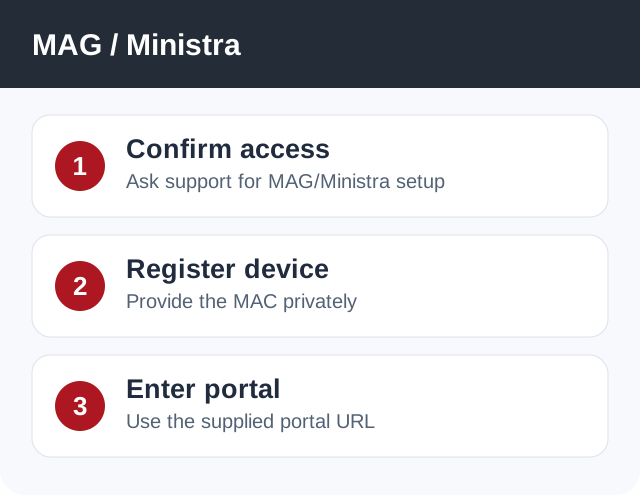
MAG/Ministra setup needs a portal URL and device authorization from Network24 support. Do not substitute an ordinary streaming URL.
Before you start
Before changing device settings, ask support whether your account is enabled for MAG/Ministra access and request the correct portal URL. Have the device model and MAC address ready for the support ticket.
Before changing device settings, ask support whether your account is enabled for MAG/Ministra access and request the correct portal URL. Have the device model and MAC address ready for the support ticket.
Important
A normal Xtream Codes server URL and a MAG/Ministra portal URL are not interchangeable. Never post your MAC address or account password in a public chat.
A normal Xtream Codes server URL and a MAG/Ministra portal URL are not interchangeable. Never post your MAC address or account password in a public chat.
Step-by-step setup
- Open a support ticket with the MAG model and the MAC address shown in the device settings. Support can confirm whether this device type is enabled for your subscription.
- After support confirms authorization, open the device's portal/server settings. Record existing values so you can restore them if needed.
- Enter the exact portal URL supplied by Network24 support, save, and restart the portal app or device as instructed.
- Wait for categories to appear and test one live channel. If it fails, report the on-screen error and device model to support.
If it does not work
- If the portal says device not authorized, confirm the MAC address registered with support matches the device.
- If the portal is blank, verify the URL, network connection and DNS; do not guess alternate portals.
- If a normal XC app works but MAG does not, tell support because MAG access is a separate mode.
Quick answers
Can I use the N24 Android APK on a MAG box?
Generally no; MAG/Ministra devices use a portal workflow.
Can I use the regular streaming server as the portal?
No. Use only the portal URL supplied for MAG/Ministra access.
Need help?
Open a support ticket and include your device model, app name, and the exact error. Do not post your password publicly.
Open a support ticket and include your device model, app name, and the exact error. Do not post your password publicly.