Add Network24 to a compatible Apple TV IPTV player using the login from your welcome email.
Before you start
Have an Apple TV with App Store access and your Network24 server URL, username and password.
Have an Apple TV with App Store access and your Network24 server URL, username and password.
Important
The Android APK and Fire TV Downloader codes are not for Apple TV. A third-party Apple TV player may require its own separate purchase.
The Android APK and Fire TV Downloader codes are not for Apple TV. A third-party Apple TV player may require its own separate purchase.
Step-by-step setup
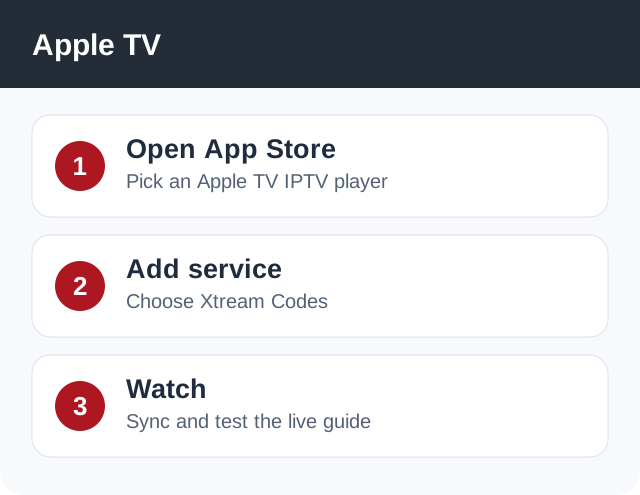
- On Apple TV, open the App Store and install an IPTV player that lists Xtream Codes/XC API support.
- Open the player and choose Add Account or Add Playlist. Select Xtream Codes where available.
- Enter the exact server URL, username and password from your Network24 welcome email. Use the full URL including protocol and port if the email shows them.
- Save, wait for the guide to sync, then test a live channel. If typing with the remote is difficult, use an Apple TV input method that lets you enter the details accurately.
If it does not work
- If no matching app is available in your region, contact support for another supported player option.
- If login fails, check the complete URL and port.
- If only some channels fail, report their exact names.
Quick answers
Can I use a Firestick code here?
No. Downloader codes are for devices that can install Android apps.
Do I need a separate Apple TV player?
Yes; its licensing terms belong to that app developer.
Need help?
Open a support ticket and include your device model, app name, and the exact error. Do not post your password publicly.
Open a support ticket and include your device model, app name, and the exact error. Do not post your password publicly.